
SNMP Get Monitoring Example
This example demonstrates how to add SNMP Get items for host monitoring and set threshold alerts.
This article demonstrates using the alarm light’s SNMP monitoring feature with SNMP Get to monitor Windows or Linux CPU, memory, and disk status.
Based on relevant resources, the following OIDs can be obtained (n is an indeterminate value):
1.3.6.1.2.1.25.3.3.1.2.n: CPU usage1.3.6.1.2.1.25.2.3.1.3.n: Storage description1.3.6.1.2.1.25.2.3.1.5.n: Total storage capacity (allocation units)1.3.6.1.2.1.25.2.3.1.6.n: Used storage capacity (allocation units)1.3.6.1.2.1.25.2.3.1.4.n: Storage allocation unit size, i.e., how many bytes per unitMonitor CPU
Section titled "Monitor CPU"-
Use the
snmpwalktool, execute command:snmpwalk -v 2c -c Public 192.168.0.210 1.3.6.1.2.1.25.3.3.1.2
-
The usage rates of each CPU core are obtained. In this example, the CPU has two cores, so two lines of data appear. From the data, the corresponding n values are 9 and 10.
That is, the OIDs for monitoring the machine’s CPU are: 1.3.6.1.2.1.25.3.3.1.2.9 and 1.3.6.1.2.1.25.3.3.1.2.10. Next, configure the alarm light.
Assuming an alert should be triggered when CPU usage exceeds 80%, that means the normal range is 0~80. According to the normal value format, enter 80. The configuration is shown below:
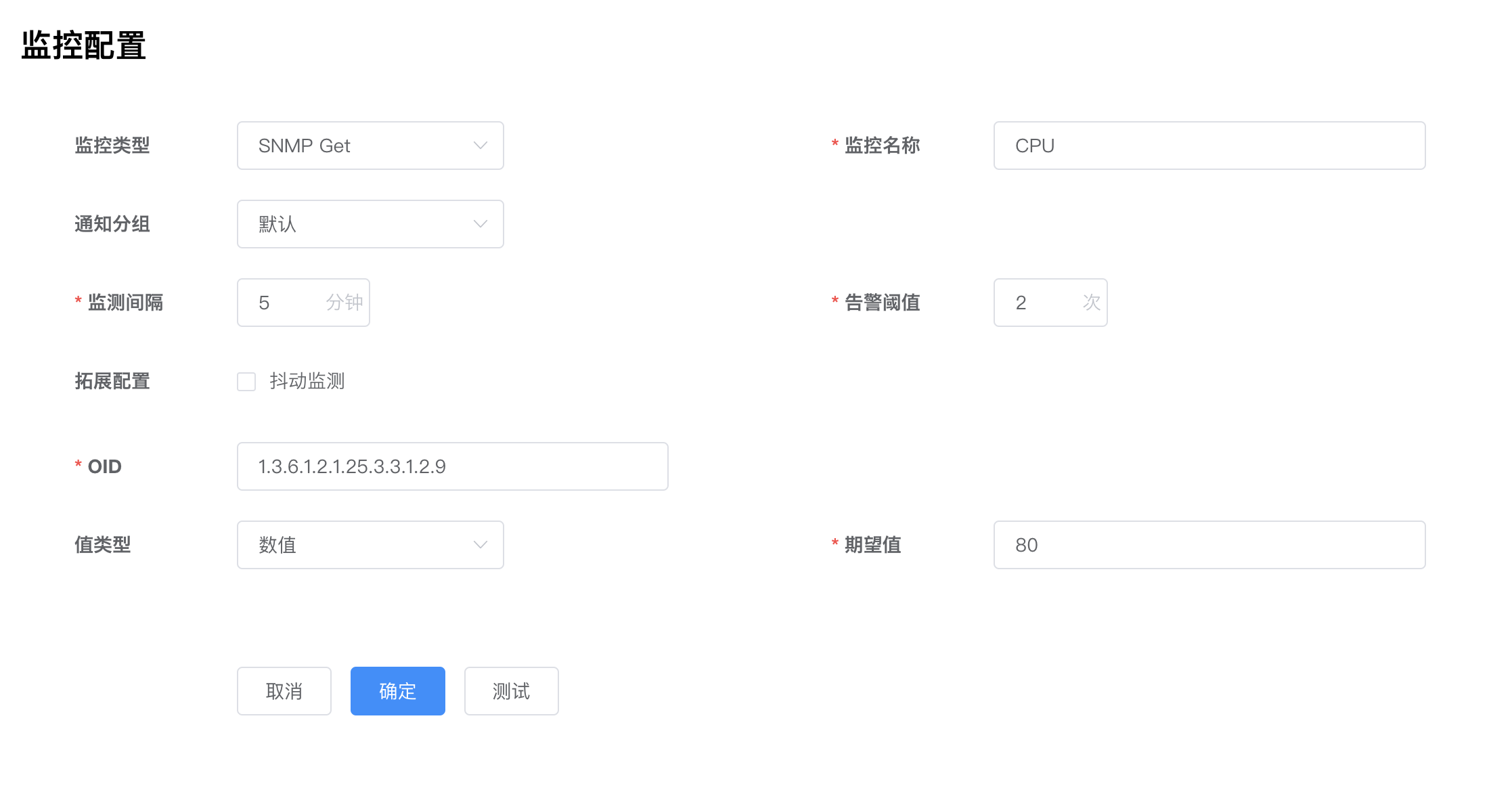
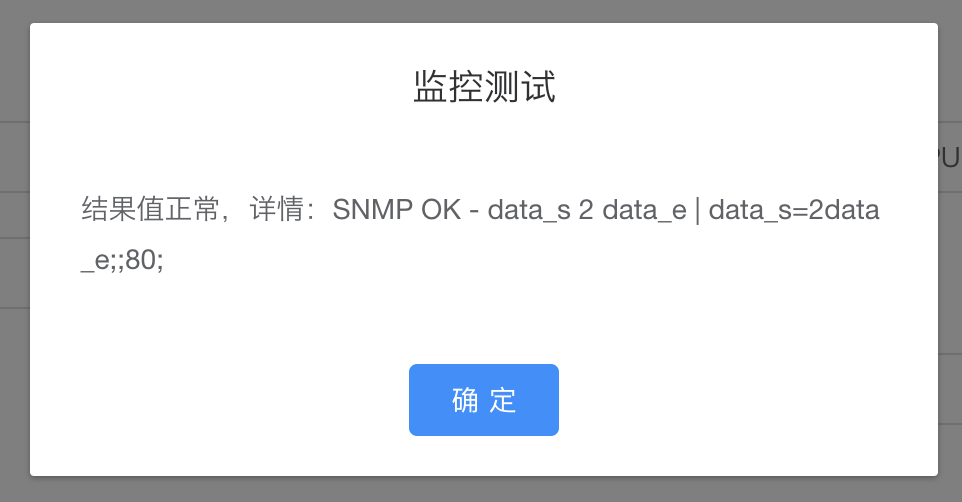
Click the test button, and the result is shown below:
-
If the value is retrieved successfully, the configuration is complete. Click confirm to save.
Monitor Disk
Section titled "Monitor Disk"-
Use the
snmpwalktool, execute command:snmpwalk -v 2c -c Public 192.168.0.210 1.3.6.1.2.1.25.2.3.1.3
-
The mapping between n values and drive letters is obtained, as shown in the table below.
Value Storage 1 C drive 2 D drive 3 Virtual memory 4 Physical memory -
Use the
snmpwalktool, execute command:snmpwalk -v 2c -c Public 192.168.0.210 1.3.6.1.2.1.25.2.3.1.5
-
Assuming you want to trigger an alert when the C drive usage exceeds 80%, from the previous steps, the C drive corresponds to value 1. From the image above, the total capacity of the C drive is 29,155,327 units.
For an 80% threshold alert, used units exceeding 29,155,327 * 80% = 23,324,261.6 means an alert is needed when used units exceed 23,324,261. The normal range is 0~23,324,261. The alarm light configuration is shown below: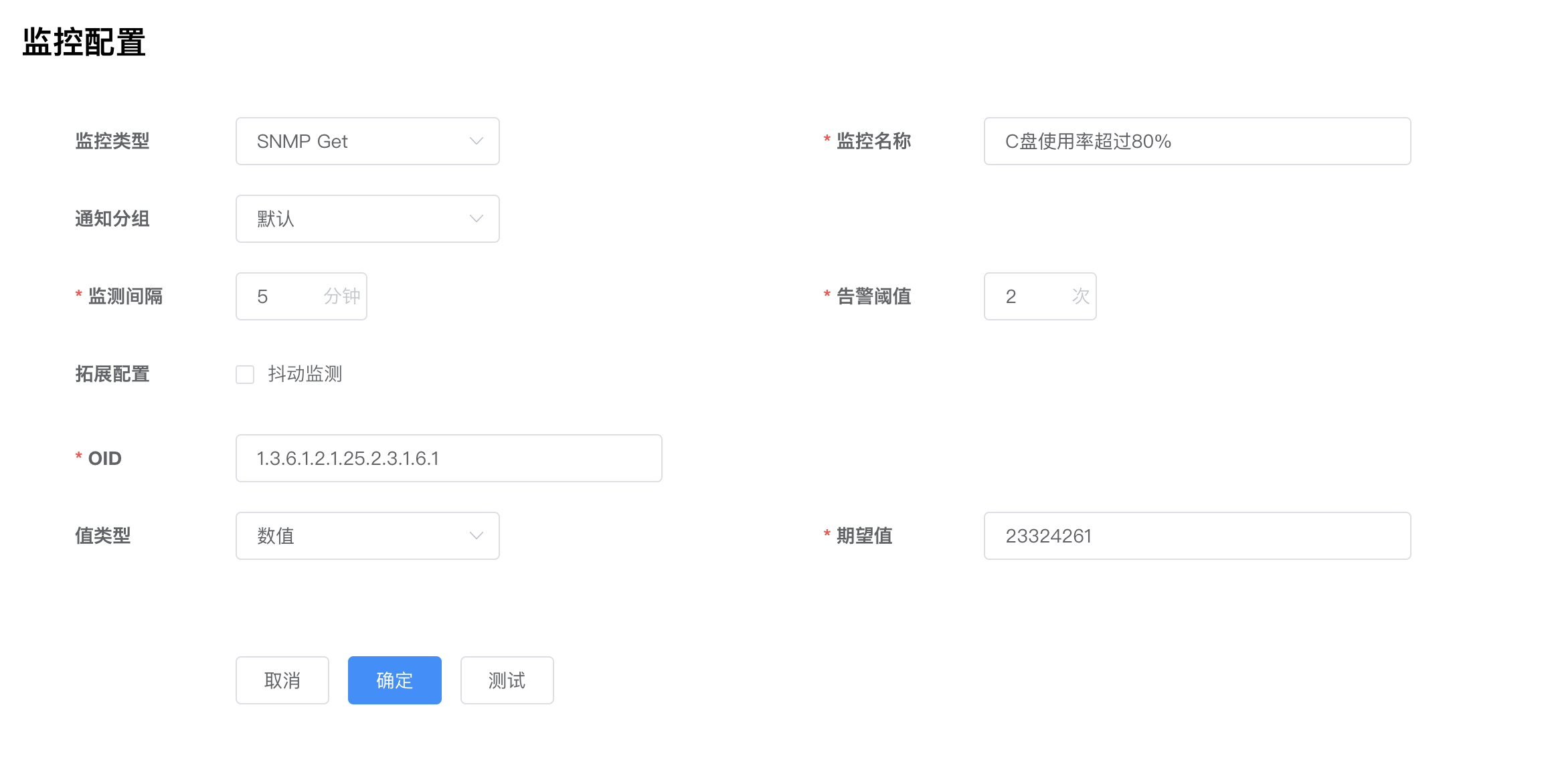
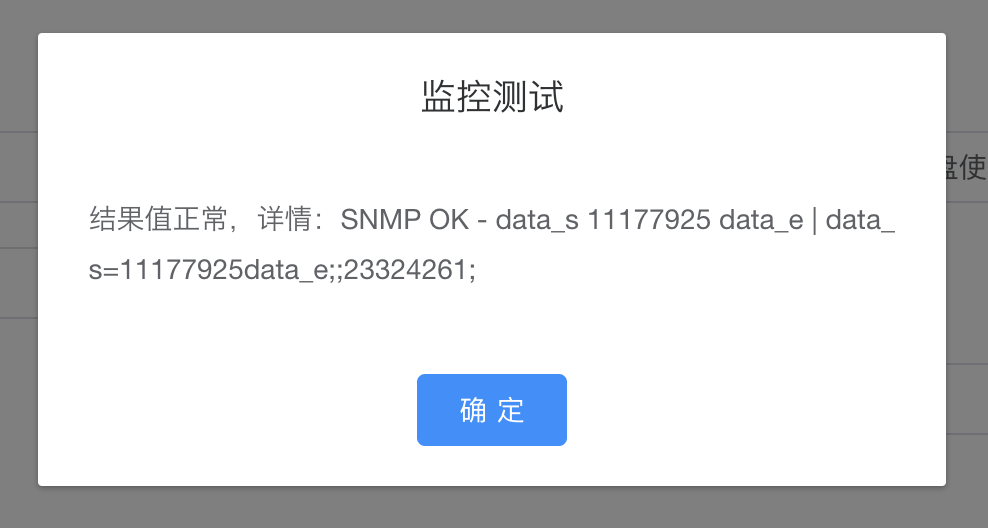
Click the test button, and the result is shown below:
-
If the value is retrieved successfully, the configuration is complete. Click confirm to save.