
Cloud Service
Cloud service supports remote management under NAT networks and multi-platform message push extensions.
This feature is designed to solve the following scenarios where direct push via IP address is not possible:
- The public cloud service cannot push alerts to alarm lights directly via IP address.
- The alert sender and the device are on different network segments, making the IP unreachable.
- All situations where the alert sender cannot access the terminal via IP address.
Available Features
Section titled "Available Features"- Forwarding API requests to devices, including Standard Alert API
Interface Description
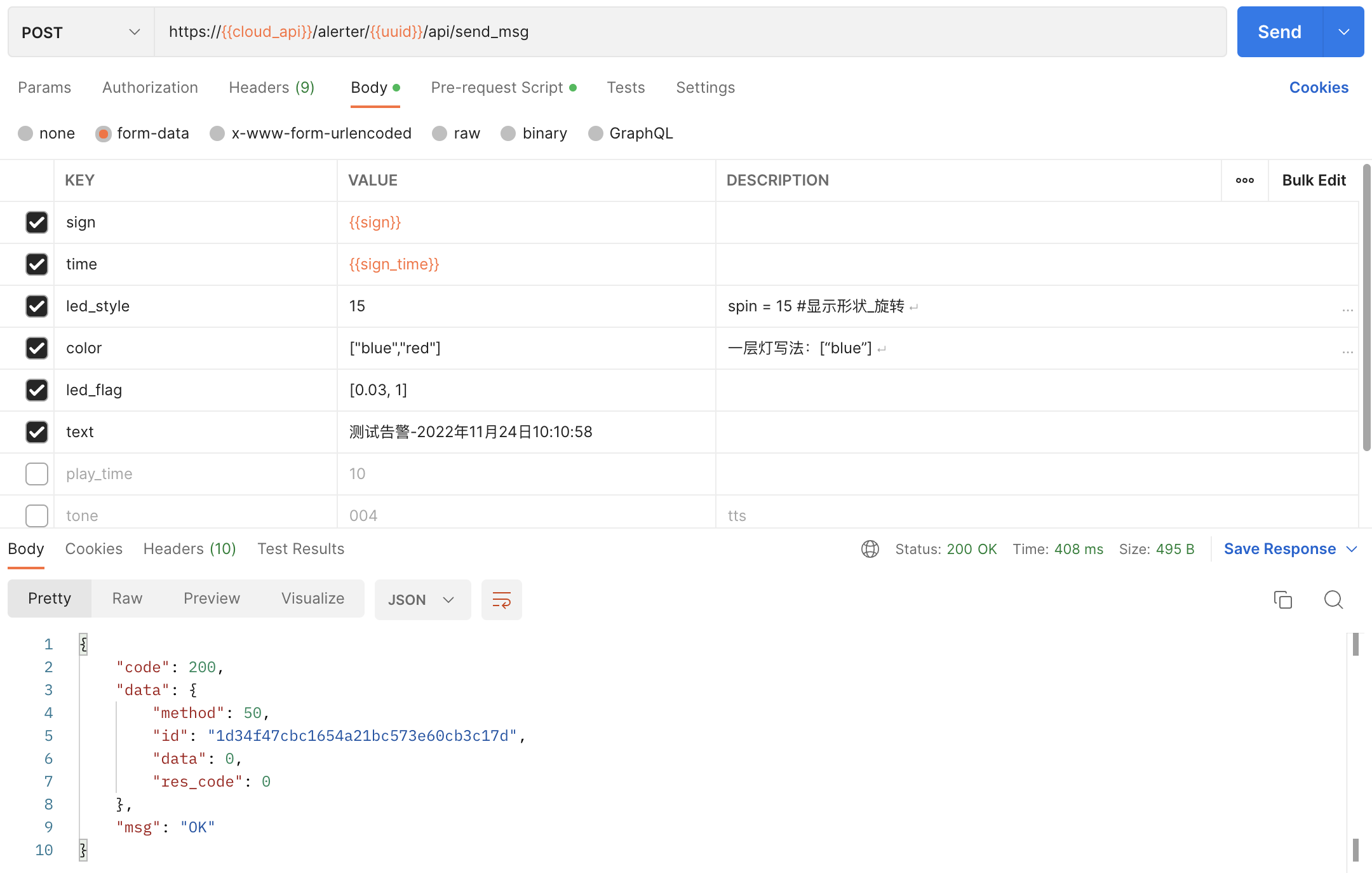
Section titled "Interface Description"In PostMan, replace the original URL (which pushes to the device via IP address) with Control Base URL + Path, keeping all other data unchanged.
Example:
Original push address:
http://<device IP address>/api/api/send_msgNew push address:
<Control Base URL>/api/send_msg
Specific case (note the red part indicates changes)
Original alert push address:
http://192.168.0.66/api/api/send_msg
Cloud push address:
https://api.eyegroup.cc/alerter/636fadf4-c9cc-7957-e0d8-73a99e8f128b/api/send_msg
Send the request to get the response:
Version Differences
Section titled "Version Differences"V1.7.3
Section titled "V1.7.3"-
Activation
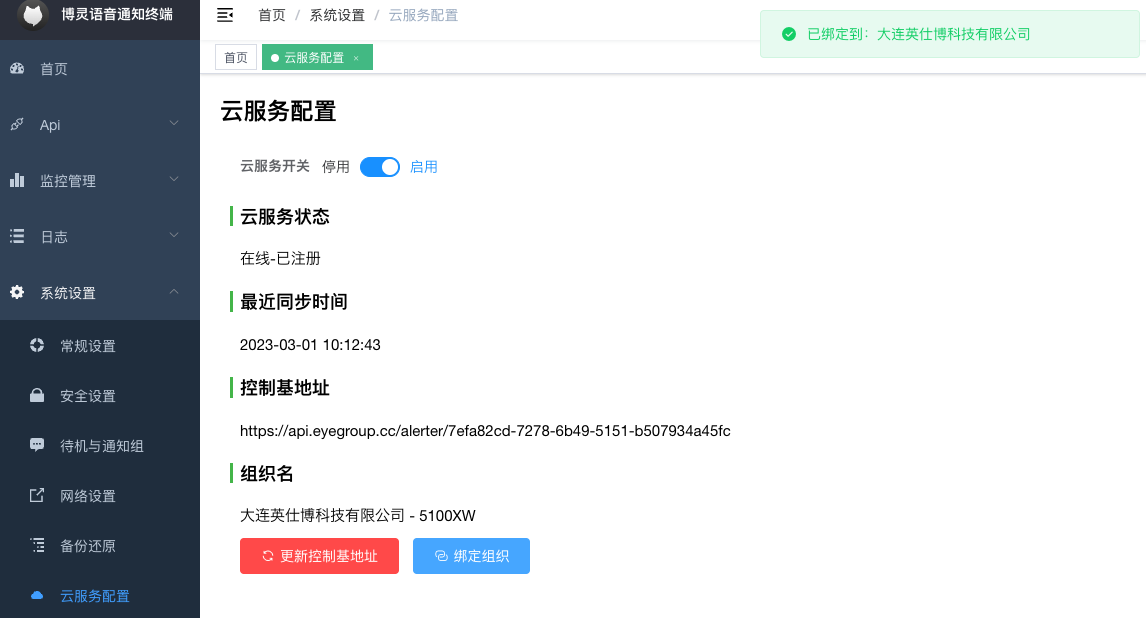
Click “Update Control Base URL” to obtain the latest device base URL.
-
Start Service
After creating the control base URL, toggle the cloud service switch in
Cloud Service Configuration. After a short wait, the status will change toOnline - Registered, and the interface will display the device’s current control base URL. -
Bind Organization (Optional)
Click the “Bind Organization” button, enter the organization OID, and click confirm. A prompt will show the organization it has been bound to.
V1.7.0
Section titled "V1.7.0"-
Binding
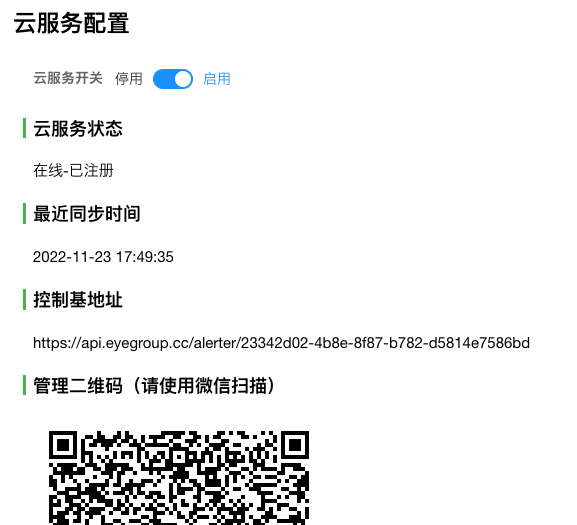
Use WeChat to scan the QR code in
Cloud Service Configuration. On your phone, click “Generate New Address” to create the device’s control base URL on the cloud. -
Start Service
After creating the control base URL, toggle the cloud service switch in
Cloud Service Configuration. After a short wait, the status will change toOnline - Registered, and the interface will display the device’s current control base URL.
Prerequisites
The terminal must have external network access.
Enable Service
-
First configure the device’s network so that it can connect to the external network. Then log in to the admin management page and navigate to
System Settings->Cloud Service Configuration. Use your phone’s WeChat to scan the management QR code, as shown below.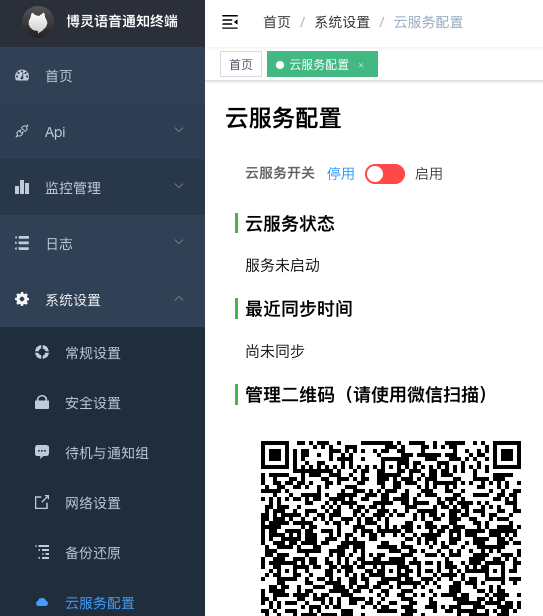
-
After scanning the QR code with WeChat on your phone, you will be directed to the address generation interface. Click the
Generate New Push Addressbutton to create a new push address for the device, as shown below.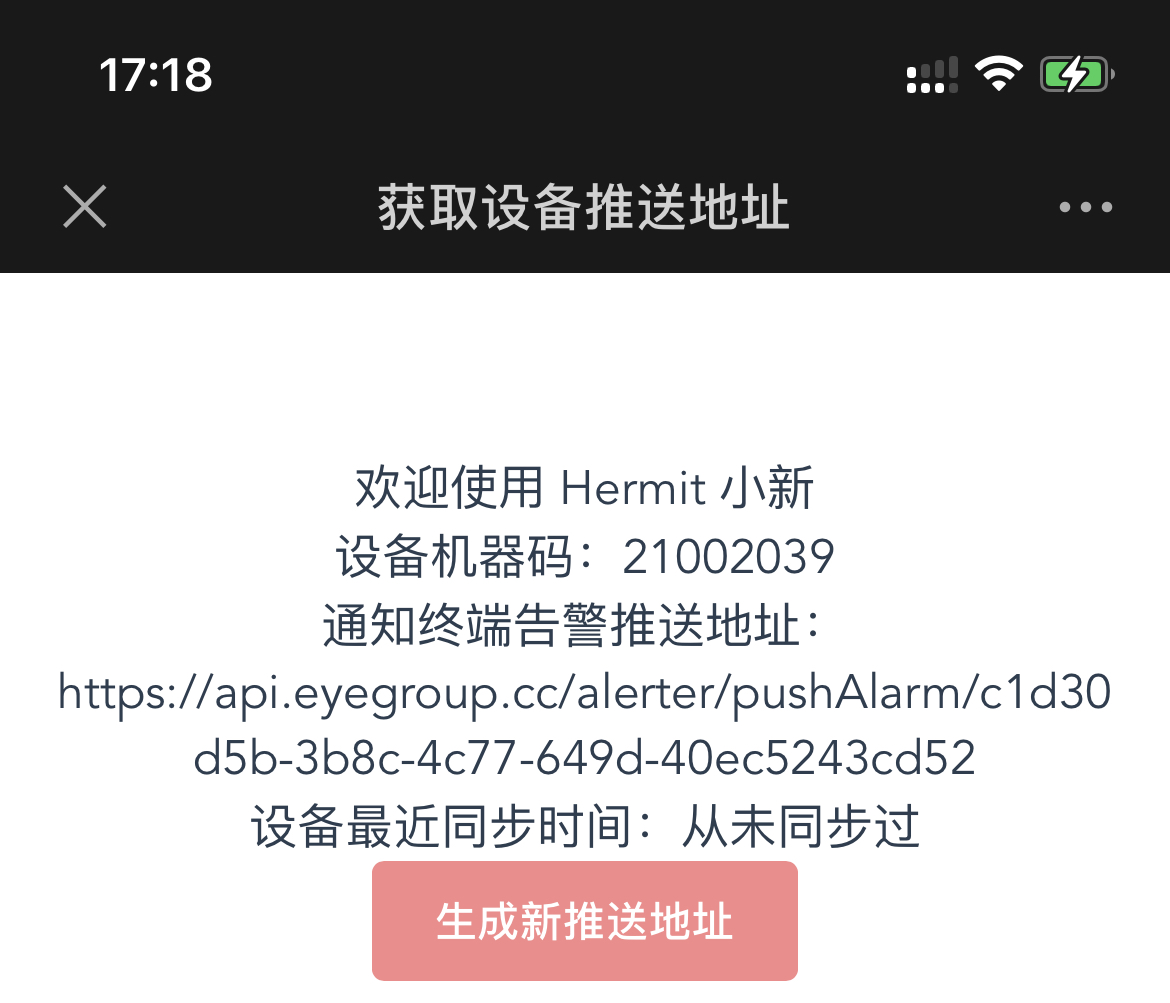
-
After obtaining the new push address, return to the device’s cloud service configuration interface, enable the cloud service switch, wait 5 seconds, and the configuration is complete when the cloud service status shows as normal.
Using the Push Address
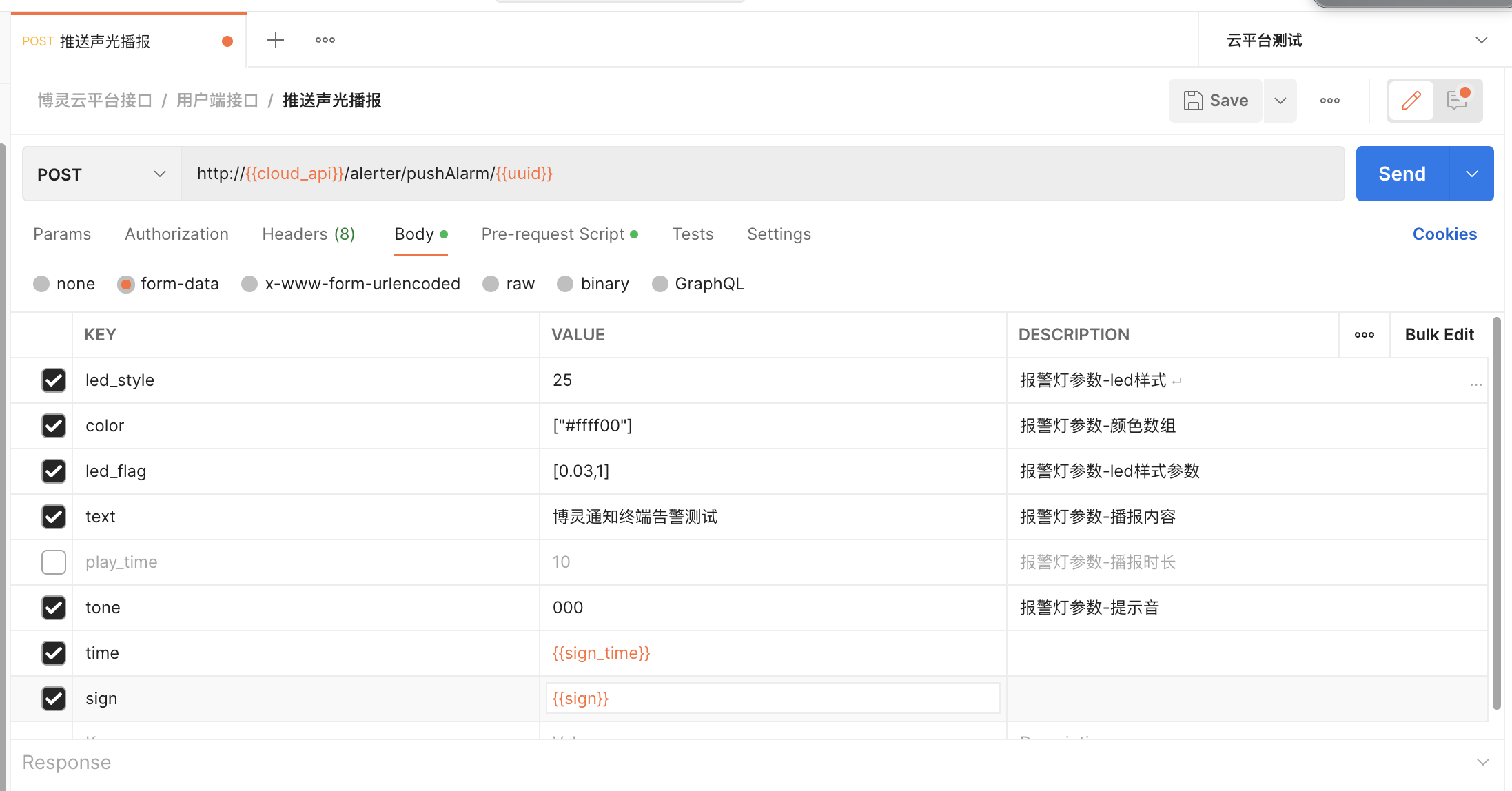
Using the push address is very simple - just push alert messages like you would with the standard API. Please refer to Standard API Usage.
The Postman interface demo for the request is shown below:
Response Description
The response from the cloud service push interface is largely similar to that of the standard API push interface, but some fields have changed. Below is a description of the field changes.
data/data: Indicates the number of alerts pending synchronization in the current queue. That is, how many alerts have not been pulled by the device yet. If this value is too large, please check whether the device is offline or if alerts are accumulating due to too fast alert sending.
data/last_pull: A new field indicating the last time the device synchronized data from the platform. If the time gap is too large compared to the current time, please check whether the device is offline.
data/id: The ID of the pushed message, currently unused.
Important Notes
The current cloud platform has a 5-day retention limit for alert messages. Alerts that are not synchronized within this period will be cleared!