Custom API
The Custom API can map external WebHook or business system requests to device audible and visual announcement actions.
Usage Scenarios
Section titled "Usage Scenarios"- When integration with an existing monitoring system is required, and although the system supports HTTP callbacks/WebHooks, the manufacturer has already defined the interface specifications (e.g., Tencent Cloud monitoring alarm callback), the alarm terminal needs to adapt to the data structure sent by the other party and trigger alarms based on their data structure.
- The existing monitoring system supports HTTP callbacks/WebHooks and also supports custom data structures, but cannot adapt to the data structure of the conventional API interface.
Configuration Example
Section titled "Configuration Example"-
Scenario Assumption: Monitoring platform alarm.
-
The callback data structure sent via WebHook through HTTP is as follows:
-
Request Method: HTTP Post, in form-data or x-www-form-urlencoded format.
-
Request Body:
Parameter Name Description host Alarm host name serv Monitored item that triggered the alarm level Alarm level, 1 for critical, 2 for warning, 3 for recovery time Time the alarm occurred
-
-
Expected Effect:
When a critical alarm occurs, the alarm light shows red rotating bright; for a warning, yellow rotating bright; for recovery, green rotating bright.
The expected announcement content is as follows (the bold underlined parts are the dynamic values passed in the actual request):
Host Name: Core Server, Monitored Item: CPU Usage, Level: Critical
Configuration Process
Section titled "Configuration Process"-
First, configure the notification groups to be used when lighting up the LEDs: red rotating bright, yellow rotating bright, and green rotating bright. Go to
Standby and Notification Group Settingsand click Add. -
Set the audible and visual alarm configuration, as shown in the image below.
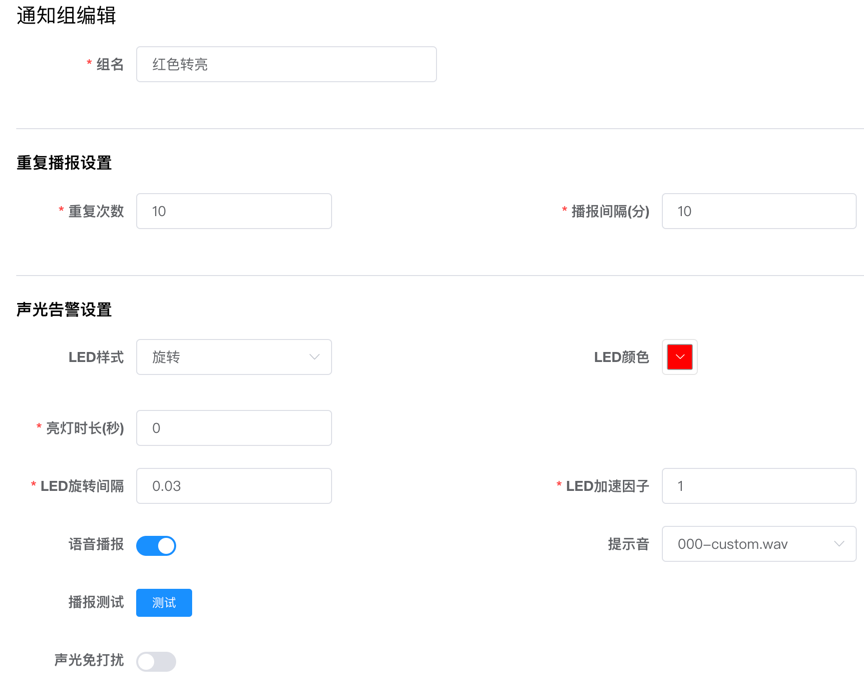
-
Similarly, set yellow rotating bright and green rotating bright respectively. The final result is shown in the image below.
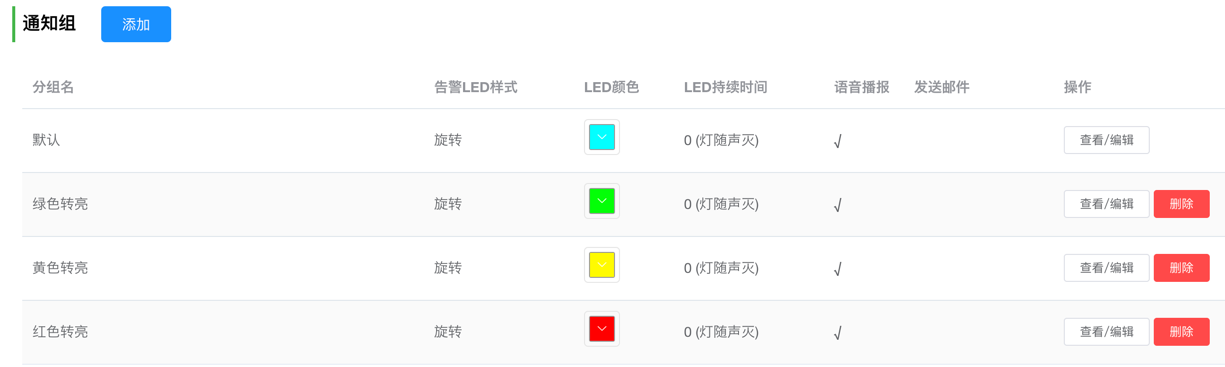
-
Go to the
API->Custom API Interfacepage and click Add.- The path name can be customized. In this case, fill in
alarm. The final request path will behttp://192.168.0.66/api/api/user_msg/alarm. - Select Post for the request type.
- Select form-data for the data type.
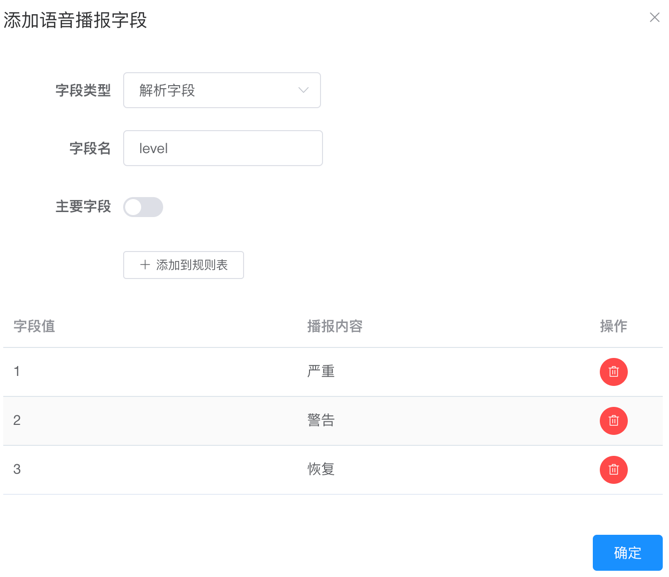
The content added to the voice announcement template is shown in the image below:
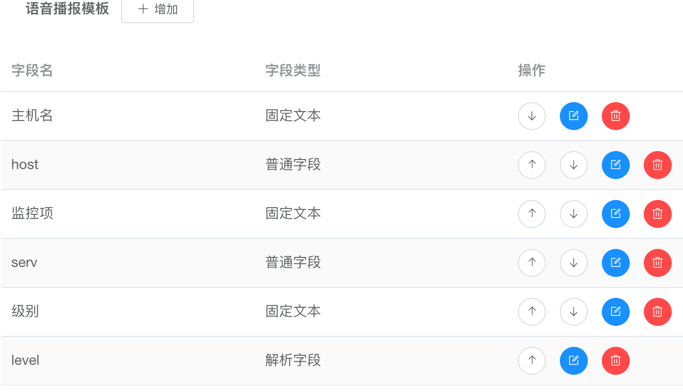
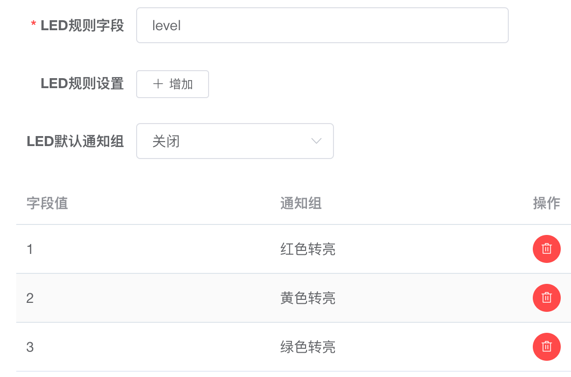
The LED rule configuration part is shown in the image below:
- The path name can be customized. In this case, fill in
Voice Announcement Template
The voice announcement template will concatenate field contents in list order, finally forming a complete announcement content.
Field Types
Fixed Text: When concatenating, the field name is directly used as the announcement content.Normal Field: When concatenating, the content of this field name is retrieved from the HTTP request parameters as the concatenation content. For example, in this case, thehostfield is a field in the post request, so a normal fieldhostin the template means that when concatenating the announcement content, the host field is retrieved from the HTTP API Post request as the content.Parsed Field: When using this, the user needs to set a rule mapping table in advance, mapping the corresponding field value -> announcement content. This function is used when some fields in the request content need to be replaced according to rules.
Example: In this case, the value of level in the request content is 1, 2, 3. When announcing, 1 needs to be replaced with Critical, 2 with Warning, and 3 with Recovery.
Overall configuration effect:
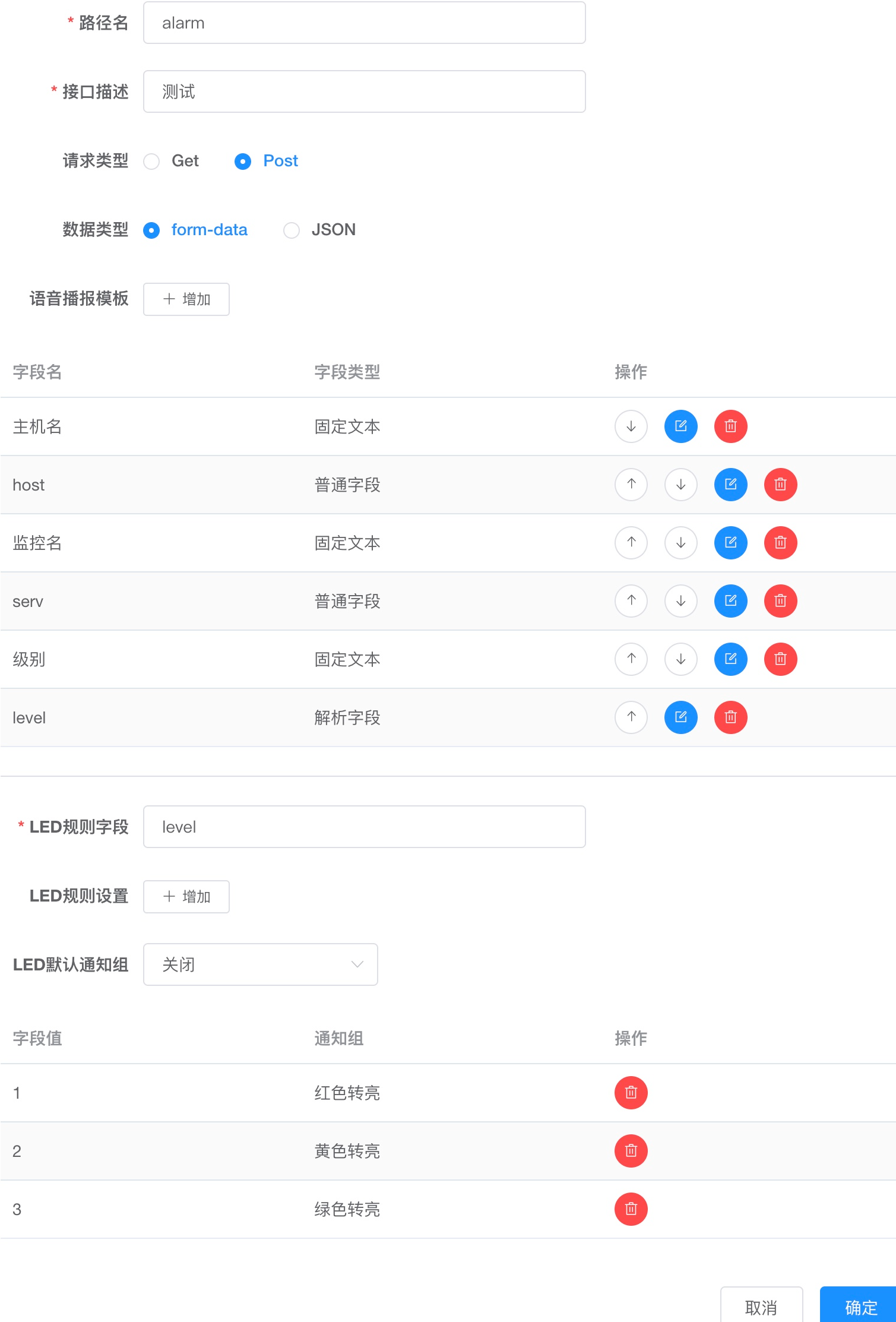
Click OK to save.
LED Rule Fields
Similar to the parsed fields of the voice announcement template, pre-set the LED mapping field name. When an alarm message is present, the device will retrieve the value corresponding to the LED rule field name from the request. In this case, it is level.
This means that every time this interface is requested, the device will retrieve the value of level as the basis for determining which LED to light up.
When the LED field value is retrieved, the LED mapping table will be used to light up the LED according to the notification group corresponding to the field value.
Linkage Debugging
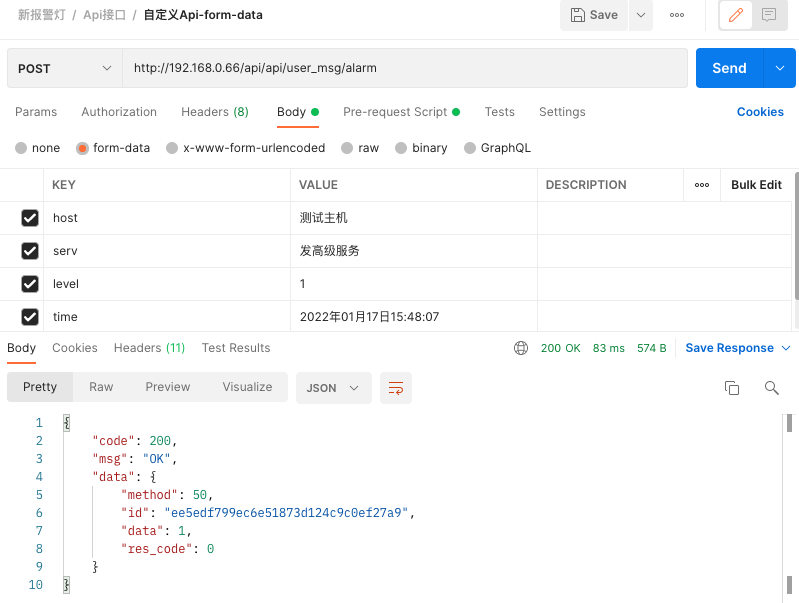
Section titled "Linkage Debugging"The debugging method is the same as for the conventional API. In this case, Postman is also used for testing.
Request Address:
http://192.168.0.66/api/api/user_msg/alarmThe underlined part
alarmin the address is the path name when adding the API.Request Method: Post
Data Type: form-data
Other test data and sending results are shown in the image below.