
Quick Start
Enable the required API under `API list`, then send requests using the field reference. The current firmware does not verify request signatures, so no API key is required.
Getting Started
Section titled "Getting Started"- Open
Interfaces→API listand enablesend_msg(sound and light broadcast). - For custom payloads, create an entry under
Interfaces→Custom API, then enableuser_msg. - Follow Basic Functions or Single Alert for fields.
See API List & Switches for the full switch behavior.
API Switches
Section titled "API Switches"API list shows each built-in API’s feature, path, method, fields, and example, with an enable switch. Only enabled APIs can be called.
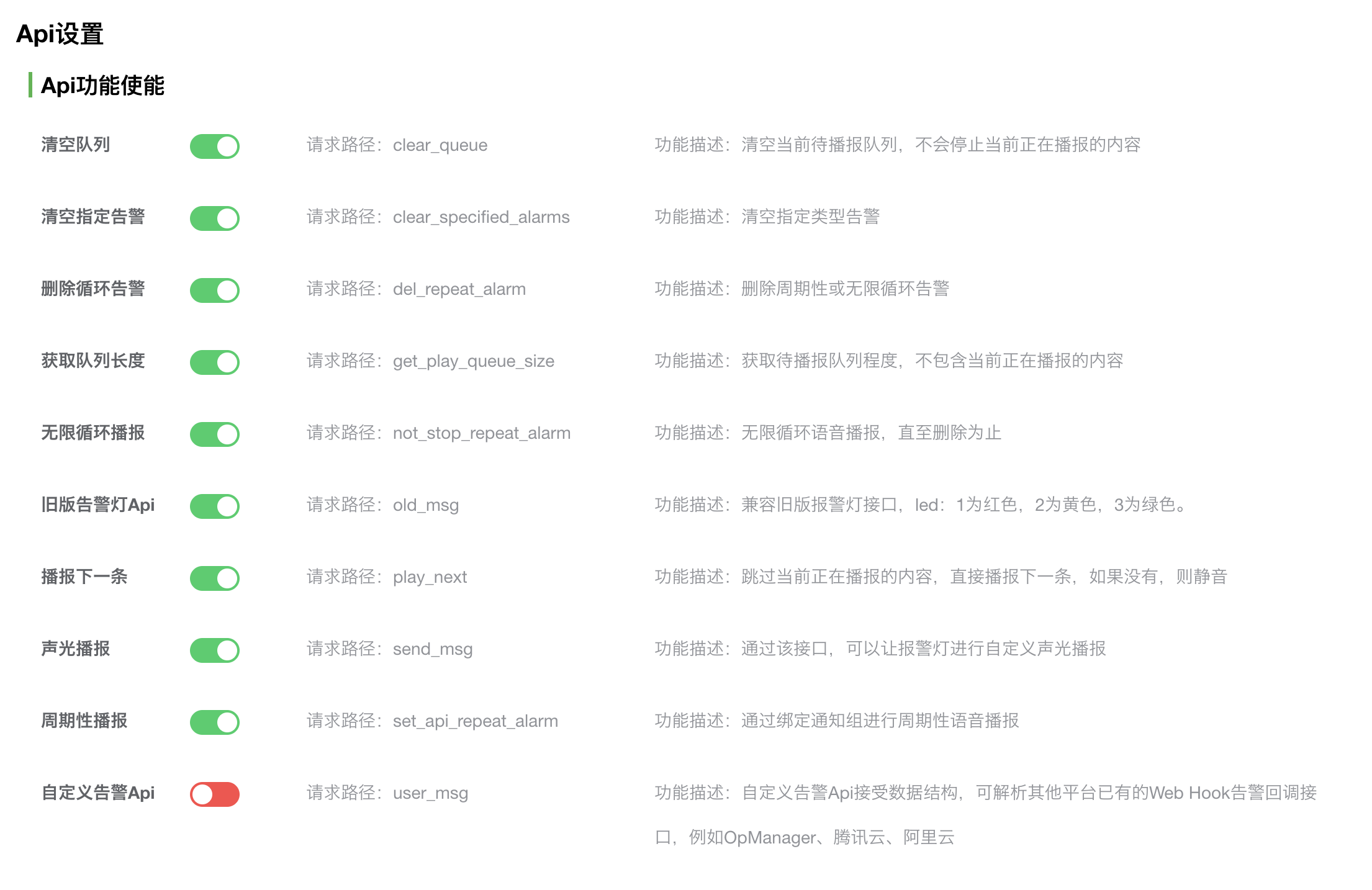
Request URLs
Section titled "Request URLs"| Version | URL | Notes |
|---|---|---|
| Legacy compatible | http://<device-ip>/api/api/send_msg | Returns {code,msg,data}, always HTTP 200 |
| v2 | http://<device-ip>/api/v2/alerts | Semantic HTTP status, returns {backend:...} |
Both operate the same broadcast capability. New integrations should use v2. See API List & Switches for the endpoint mapping.
Legacy Signature Algorithm (Not Verified)
Section titled "Legacy Signature Algorithm (Not Verified)"The algorithm below applies to older firmware. The current firmware does not verify signatures; this section is kept for migration and troubleshooting.
- Add
token(API key) andtime(current Unix seconds) to the parameter array, then sort by key ascending. - Concatenate
keyandvaluein order to obtainsign_str. - MD5-hash
sign_strto obtainsign. - Add
signandtimeto the request.
Example
Section titled "Example"Original parameters:
| Name | Value |
|---|---|
| led_style | 15 |
| color | [“#123456”] |
| led_flag | [0.1,1] |
| text | Voice and light terminal |
| time | 1668843530 |
Add token:
| Name | Value |
|---|---|
| led_style | 15 |
| color | [“#123456”] |
| led_flag | [0.1,1] |
| text | Voice and light terminal |
| time | 1668843530 |
| token | 1qaz2wsx |
Sorted and concatenated:
color["#123456"]led_flag[0.1,1]led_style15textVoice and light terminaltime1668843530token1qaz2wsx
MD5 result:
dc76013f54527b7074e4076e86fba803
Legacy response:
{ "code": 200, "msg": "OK", "data": { "method": 50, "id": "4972367dd614bf8adfe5fff138a3af76", "data": 1, "res_code": 0 }}